There are two types of HFM logins: to access the member page (myHF area), use your registered email address and password; to log in to MT4/MT5, use your trading account login ID, password, and server name.
| Where to Log In | Login Page | ID to Use | Password |
|---|---|---|---|
| Member Page (myHF Area) | https://my.hfm.com/jp/int/login(サイト右上の「ログイン」) | Registered email address (Google or Apple addresses are also accepted) | Password used when registering your account |
| HFM App | App Launch Screen | Registered email address | Password used when registering your account |
| MT4/MT5 (PC and Smartphone) | MT4/MT5 Account Management Screen | Trading Account Login ID (+ Server Name) | Trading Account Password |
| Web Trader | In the myHF area, go to "Trading Account" → "Trade" → "HFM Web Trader" | Log in to the myHF area and select a trading account | Trading Account Password |
You cannot log in to the HFM Member Page using your MT4/MT5 account number. Your trading account login ID, password, and server name are listed in the “HFM Live Account Opened” email you received when you opened your account.
Logging in to the HFM Member Page (myHF Area) (HFM login)
STEP 1: Click "Log In" on the website
Open the HFM website and click "Log In" in the upper-right corner.
STEP 2: Enter your email address
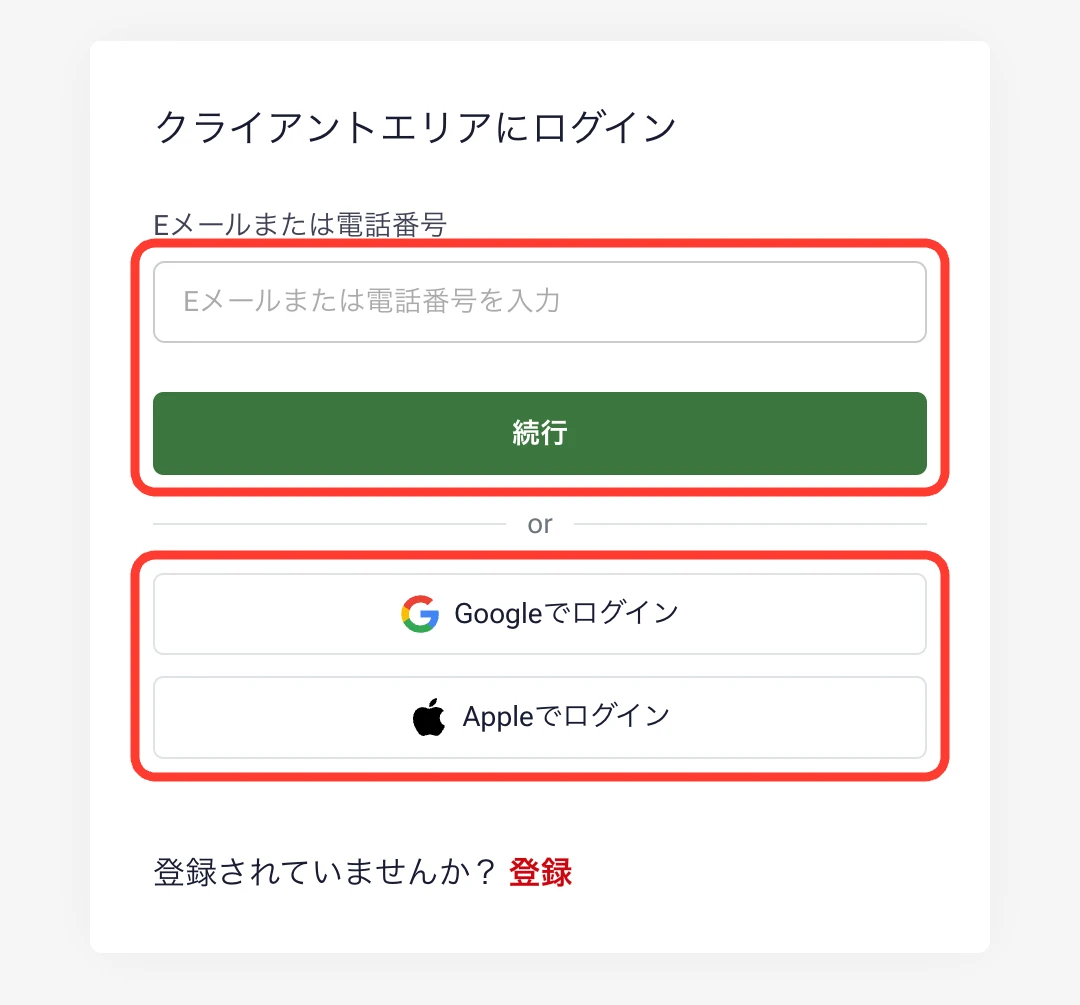
Enter the email address you used to register and click "Continue." If you registered with Google or Apple (social login), click the corresponding button.
STEP 3: Enter your password
Enter your password and click "Continue." Once the myHF Area home screen appears, you're logged in.
HotForex Login and HFM Login
HFM is the former HotForex, which rebranded in 2023. Even if you created an account during the HotForex era, you can log in to the HFM member page using your registered email address.
Logging In to HFM's MT4 and MT5
Logging into HFM's MT4 (PC)
Launch MT4, select "File" → "Log In to Trading Account" in the upper-left corner. Enter your login ID and password, select a server, and log in.
Logging In to the HFM MT4 App
STEP 1: Open "Account Management" in the MT4 app menu and tap the "+" icon in the upper-right corner (you can also access this by going to "Settings" → "New Account").
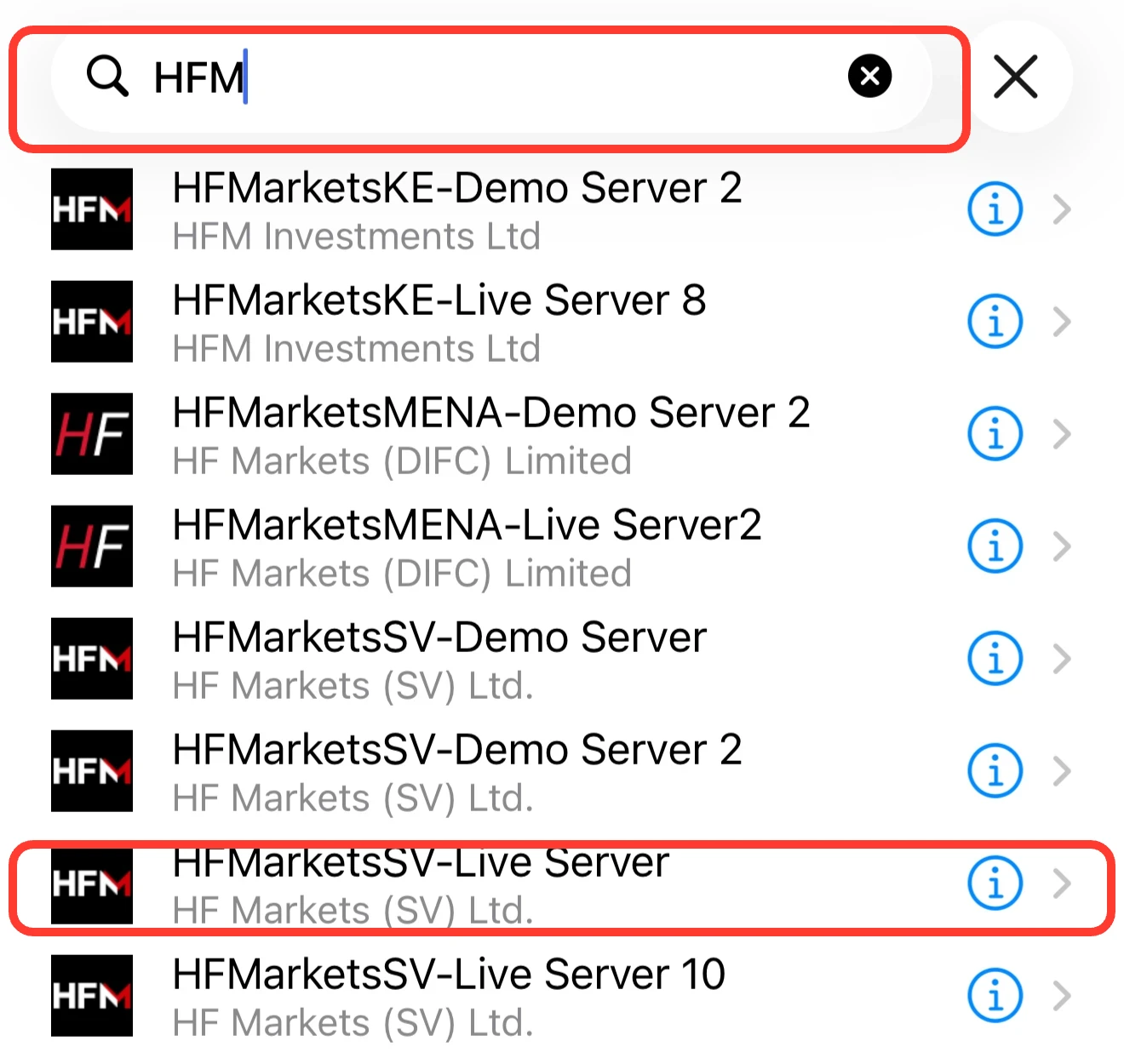
STEP 2: Select “Log in to an existing account,” enter “HFM” in the search field, and select the server.
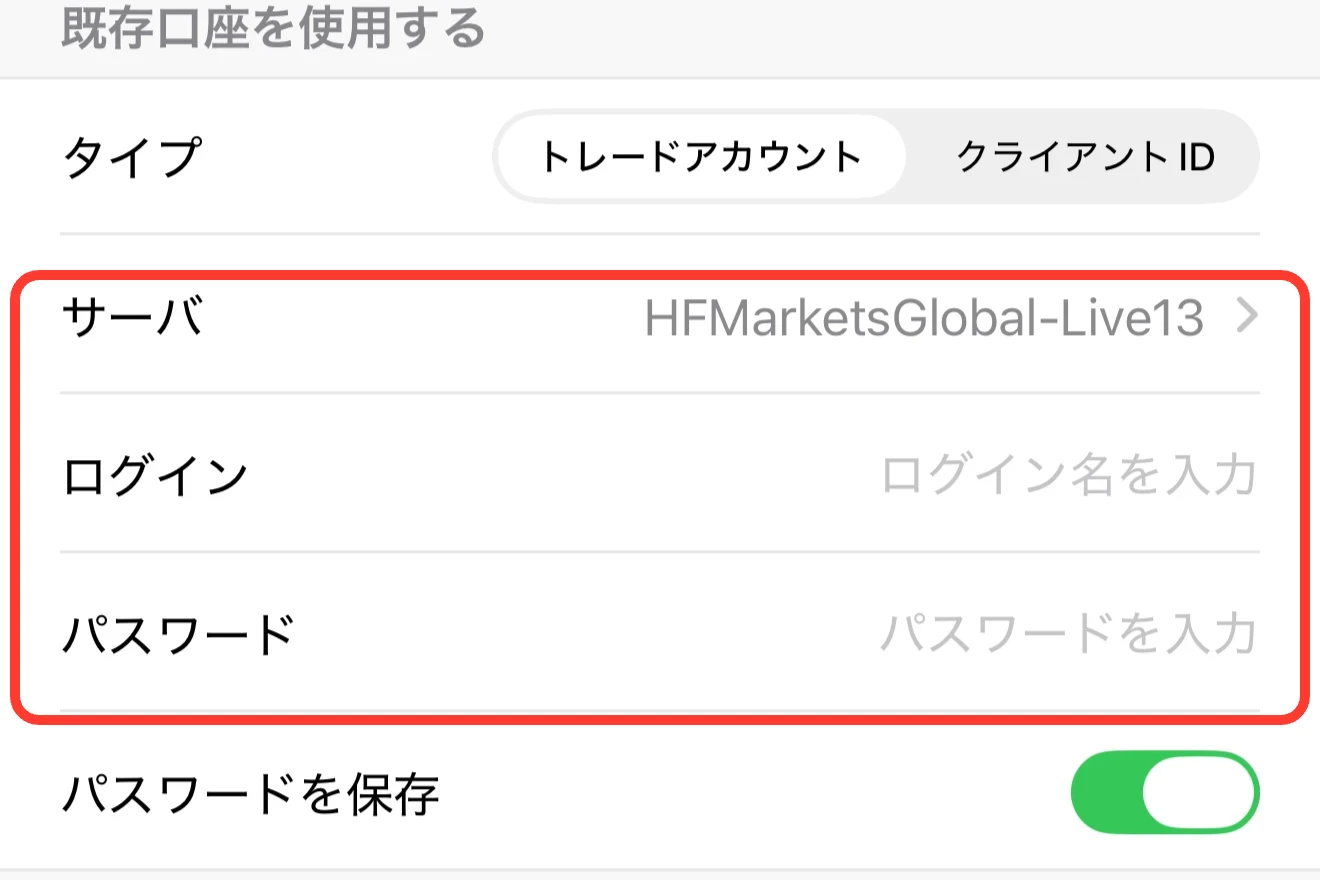
STEP 3: Enter your login ID and password, then click “Sign In.” Once the HFM logo, your name, and account name appear, you’re logged in.
Logging In to the HFM MT5 App
STEP 1: In the MT5 app menu, select "Account Management," then tap the "+" icon in the upper-right corner.
STEP 2: Search for “HFM” and select the company name listed in your account opening email (HF Markets (SV) Ltd.).
STEP 3: Enter your login ID, password, and server name, then click “Login.” If your margin balance appears on the “Trade” tab, you have successfully logged in.
You can check the app downloads in HFM's MT4/MT5.
Check Your HFM Account Login ID
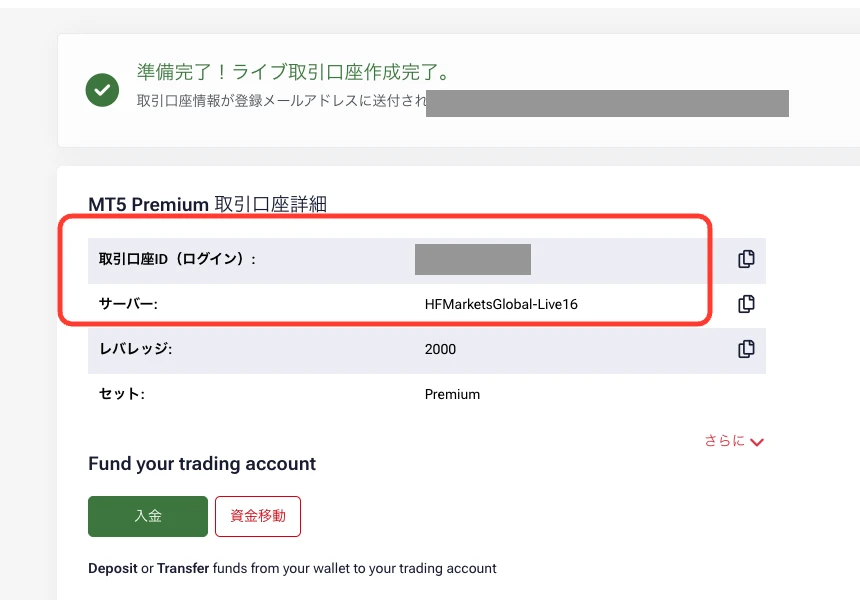
You can find your MT4/MT5 login ID in the list of trading accounts on the Member Page or in the "HFM Live Account Opened" email. You can also find the server name on the Member Page.
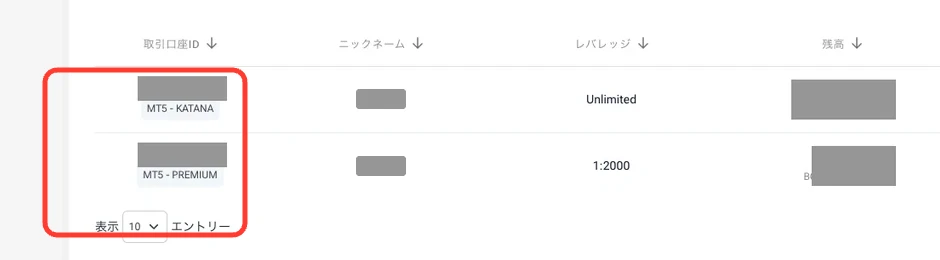
Logging In to HFM's Web Trader
HFM Web Trader is a trading platform that runs in your browser and requires no downloads. Log in to the myHF area, select "Trade" under "Trading Accounts" → "HFM Web Trader," and enter your trading account password to begin trading.
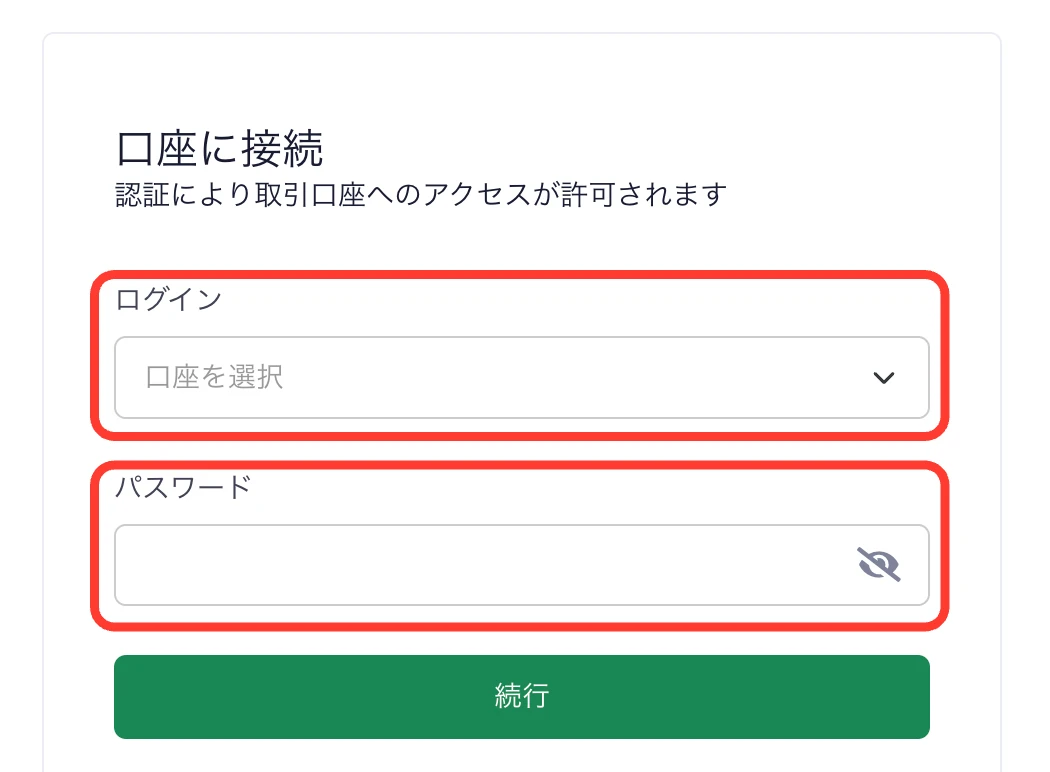
When You Can't Log In to HFM
| Symptoms | Causes and Solutions |
|---|---|
| I don't know my password | On the login screen, enter your email address → click “Forgot your password?” → click “Reset Password” → enter the verification code from the email to set a new password |
| I don't know the email address I registered with | Since I can't verify it myself, I'll contact support and say, "I've forgotten my email address." |
| I'm getting an error with my email address | Contact support or create a new account with a different email address |
| It has been unused for a long time without being approved | Accounts that have not been verified will become inaccessible if there is no activity for 90 days. Please contact support to have your account reactivated. |
| Unable to Log In to MT4/MT5 | Incorrect login ID, password, or server name. Please check the account opening email. |
| I can't log in to MT4/MT5 even though the information is correct | Opening an MT4 account on MT5 (and vice versa), selecting the wrong server for live or demo trading |
| I can't find my trading account | It may have been archived due to no trading activity for 60 days. Check under "My Trading Accounts" → "View All" → "Archived Accounts." |
| Can't connect | Network issues; server maintenance in progress |
Who to Contact If You Can't Log In to HFM's FX Platform
You can contact us via the Japanese live chat (9:00 AM to midnight JST) by clicking the speech bubble icon in the lower-right corner of the site, or by email (supportjp@hfm.com). Please note that archived accounts generally cannot be restored.
Frequently Asked Questions About HFM Login
What should I do if I forget my HFM MT4 or MT5 password?
Your trading account login ID and password are listed in the "HFM Live Account Opened" email you received when you opened your account. You can also view them on the trading account page in the Member Area. If you cannot find the email, please contact Support.
Where is the HFM broker login page?
The login page for the Members Area is available at https://my.hfm.com/jp/int/login, and you can also access it by clicking "Login" in the upper-right corner of the HFM website. Log in using your registered email address and password, or with your Google or Apple account.
Can I log in to the HFM member page using my account number?
No, you cannot. To access the member page (myHF Area), you must log in using the email address and password you registered with, or your Google or Apple account. Your account number is used to log in to MT4/MT5.
I can't log in to my HFM demo account
Since demo accounts use a different server than live accounts, select the server name designated for demo accounts. In the MT4 app, even for demo accounts, you should log in via “Log in to an existing account” rather than “Open a demo account.” Demo accounts with no trading activity for 29 days after opening will be closed and cannot be reactivated.
Can I switch between multiple accounts in the HFM MT4 app?
Once you've logged in, your accounts will appear in a list under "Account Management." Tap the account you want to use to switch to it. You can remove accounts you no longer need from the app by tapping "⋮" → "Delete Account."
Please see HFM's Cashback page for details on the rebate amount and eligibility requirements.