There are four types of trading tools available at HFM: MT4, MT5, the HFM app, and WebTrader. You can download the desktop versions of MT4 and MT5 from the HFM website, and the mobile versions from the App Store and Google Play.
| Types of Trading Tools | Windows | Mac | Linux | iPhone | Android | Browser |
|---|---|---|---|---|---|---|
| MT4 | ○ | ○ | ○ | ○ | ○ | ○ (Web Terminal) |
| MT5 | ○ | ○ | ○ | ○ | ○ | ○ (Web Terminal) |
| HFM App | — | — | — | ○ | ○ | — |
| Web Trader | — | — | — | — | — | ○ (No download required) |
MT4 and MT5 are not compatible with each other; you can only log in to an MT4 account using MT4 and to an MT5 account using MT5. You choose which platform to use when you open your trading account.
Differences Between HFM's MT4 and MT5
| Item | MT4 | MT5 |
|---|---|---|
| Indicators and Tools | More than 50 varieties | More than 80 varieties |
| Available Time Frames | 9 types | 21 varieties |
| Number of Accounts You Can Open | Up to 7 accounts | Up to 5 accounts |
| Using EA (Automated Trading) | Possible | Possible |
| ETF Trading | Can't | Can |
The MT5 mobile app offers many features that are more convenient than those in MT4, such as buttons that allow you to buy or sell while viewing charts, limit and stop orders placed at horizontal lines on the chart, bulk position closing, and Buy Stop Limit and Sell Stop Limit orders.
Downloading and Installing HFM's MT4
STEP 1: Download the PC version of MT4
On the HFM MT4 page, select your operating system from the "Download for Windows," "Download for Mac," or "Download Link for Linux" options, and download the software.
STEP 2: Install and Log In
On Windows, run the downloaded .exe file to install the software, then log in to your HFM MT4 account. To uninstall, right-click the MT4 icon in the Start menu and select “Uninstall.”
Download the HFM MT4 App
On Android, search for “MT4” on Google Play and install “MetaTrader 4 FX Trading.” On iPhone, search for “MT4” on the App Store and download “MetaTrader 4.” Since the icon looks very similar to that of MT5, be sure to check the app’s name before downloading it.
Downloading and Installing HFM's MT5
STEP 1: Download the PC version of MT5
On the HFM MT5 page, click "Download MT5" and select the version for PC, Android, iOS, or the web terminal.
STEP 2: Install the MT5 app
Search for “MT5” on Google Play or the App Store and install “MetaTrader 5.” When the message “Welcome to MetaTrader 5!” appears upon first launch, tap “Accept,” then close the “Open a Demo Account” window by tapping “Cancel” in the upper-right corner. If you open a demo account here, it will be a demo account provided by MetaQuotes, the app’s developer, rather than one from HFM.
Logging In to HFM's MT4 and MT5
Logging In to the HFM MT4 App
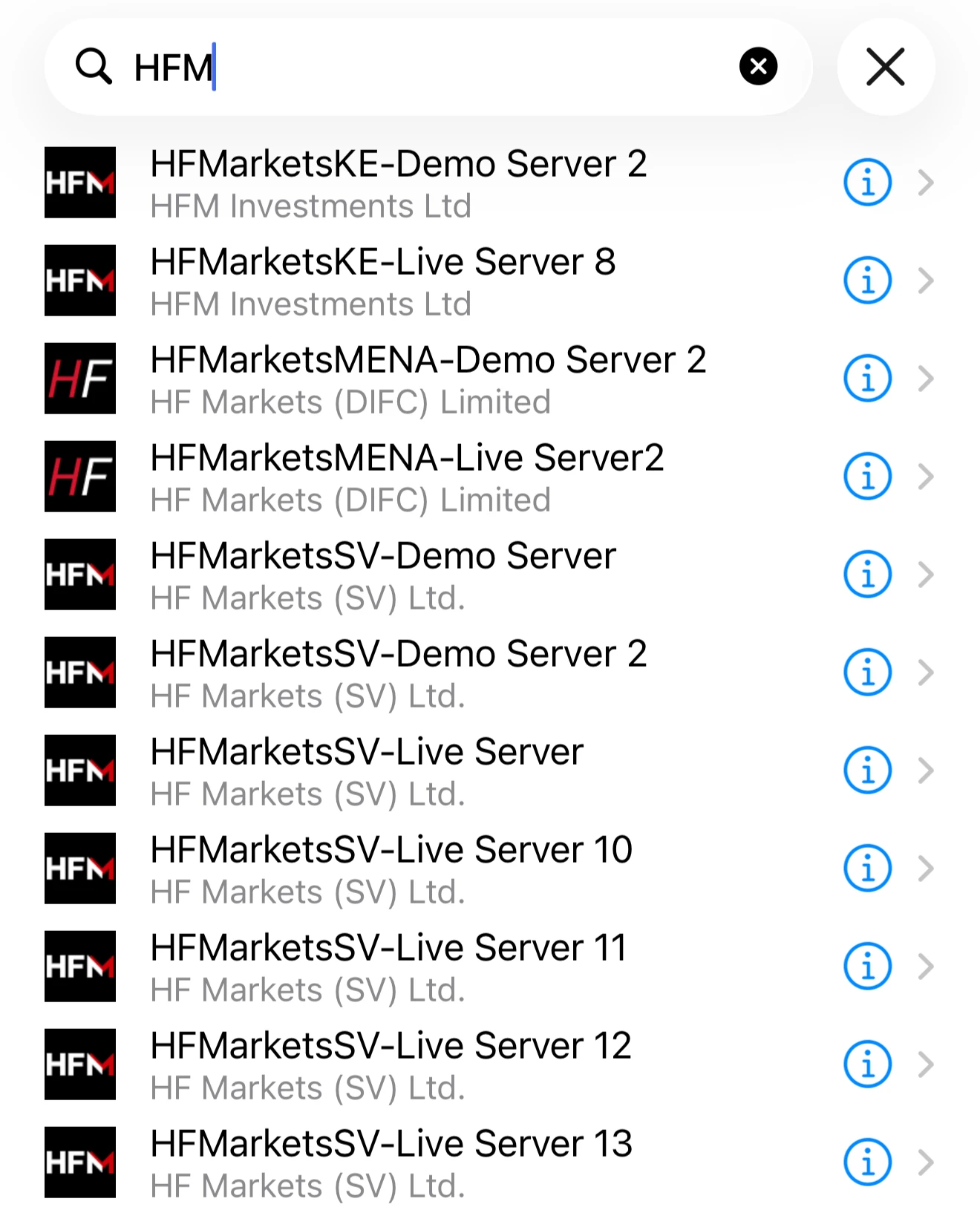
Go to "Account Management" in the menu → click the "+" in the upper-right corner → select "Log in to an existing account," then search for "HFM" and select the server listed in your account login information. After selecting the server, enter your login ID and password to log in to your account.
Logging In to the HFM MT5 App
From the menu, go to "Account Management" → "+," search for "HFM," and select the company name (HF Markets (SV) Ltd.) listed in your account opening email. Select the server listed in your account opening information, enter your login ID and password, and click "Log In."
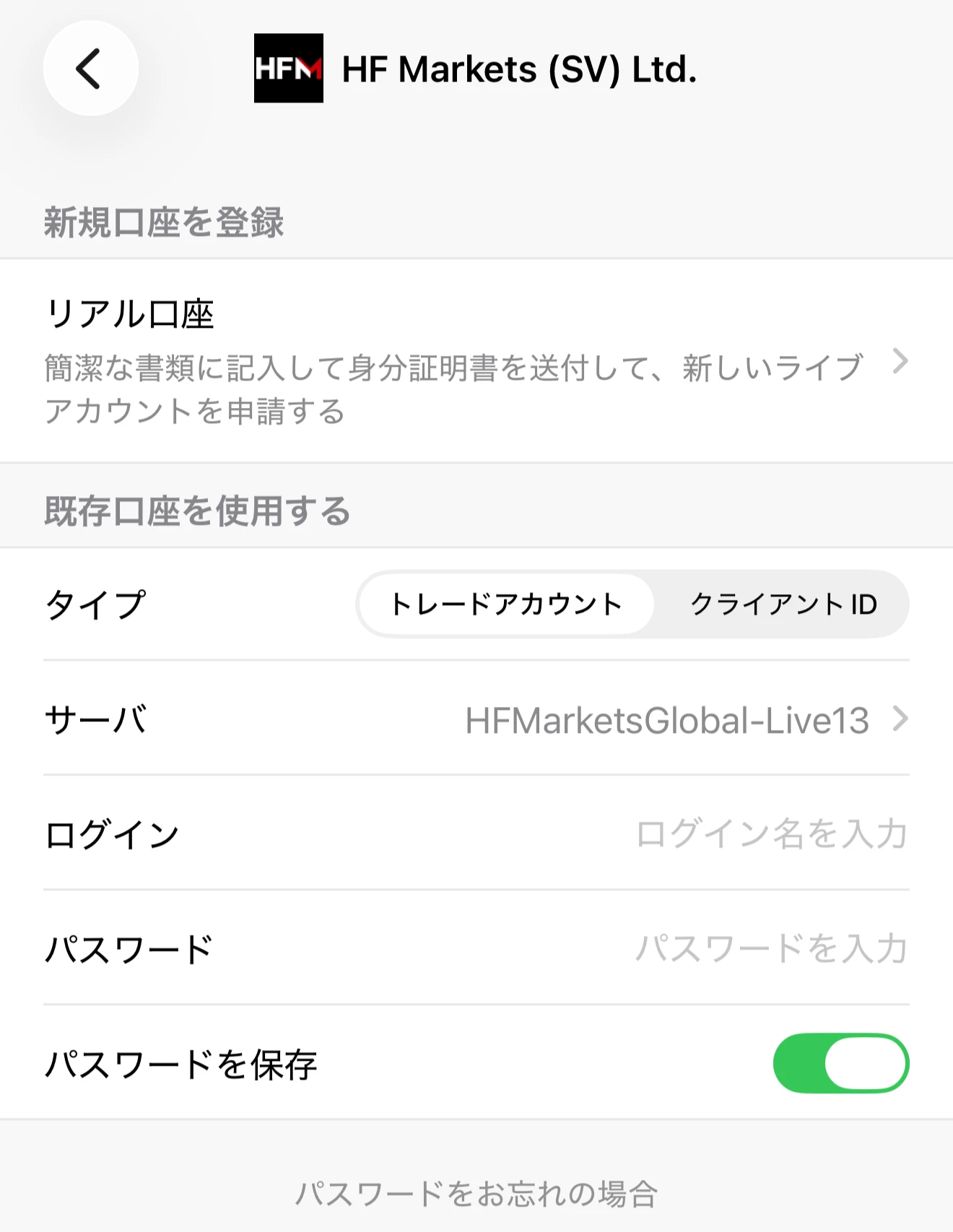
Your login ID, password, and server name are listed in the “HFM Live Account Opened” email you received when you opened your trading account. For detailed instructions—including those for the PC version—and what to do if you can’t log in, please refer to the “HFM Login” page.
HFM App
The HFM app is a smartphone app (for iPhone and Android) provided by HFM. You can do everything—from registering an account, verifying your identity, opening a trading account, and making deposits to analyzing charts, placing orders, and withdrawing funds—all within the app. You can also open a demo account through the app.
Downloading the HFM App and Registering with HFM
STEP 1: Download the HFM app from the App Store, Google Play, or the HFM homepage.
STEP 2: Click “Register” → “Individual” → select your location → enter your email address and password, then click “Finish.” Enter the verification code sent to your email and click “Verify.”
STEP 3: Complete your detailed profile, take a selfie, and submit the required documents to verify your identity. Then, open an account by going to “Menu” → “My Wallet” → “Live Account” → “Open a Trading Account.”
Deposits and Withdrawals on the HFM App
To make a deposit, select a method from the "Deposit" menu; to make a withdrawal, go to "My Wallet" → "Withdraw." Before making a withdrawal, be sure to transfer funds from your trading account to your wallet.
Settings for Setting the HFM App to Japanese
Log in to the HFM app, then tap “More” in the lower-right corner of the screen, followed by “Appearance Settings.” Tap “English” under “Language,” then select “Japanese” from the list of languages to switch the display to Japanese.
HFM's VPS
| Plan | CPU, Memory, and Storage | Monthly | Annual Amount | Free Use |
|---|---|---|---|---|
| Bronze | 1 vCPU, 2,560 MB, 30 GB SSD | Equivalent to $25 | worth $300 | Allowed if the conditions are met |
| Silver | 2 vCPUs, 4,096 MB, 50 GB SSD | Worth $50 | worth $600 | Not allowed |
| Gold | 4 vCPUs, 6,656 MB, 75 GB SSD | equivalent to $80 | equivalent to $960 | Not allowed |
The operating system is Windows Server 2022, and you can install and use MT4 and MT5. The Bronze tier is available free of charge if you have made net deposits totaling at least $400 (58,000 yen) in the last 30 days and have executed (and closed) at least 2 standard lots in the most recent calendar month. If you do not meet these conditions, a monthly fee equivalent to $25 will apply.
Steps to Sign Up for an HFM VPS
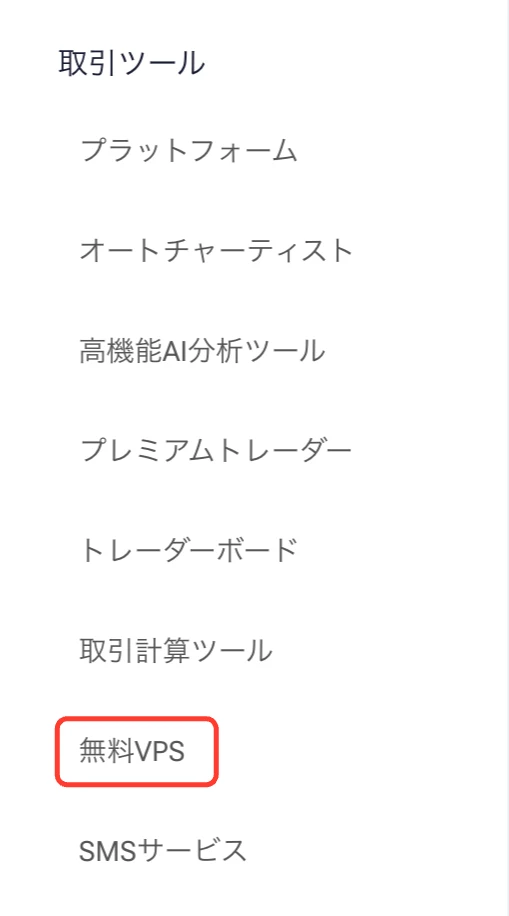
STEP 1: Open "Free VPS" in the myHF area menu and click "VPS Shopping Cart."
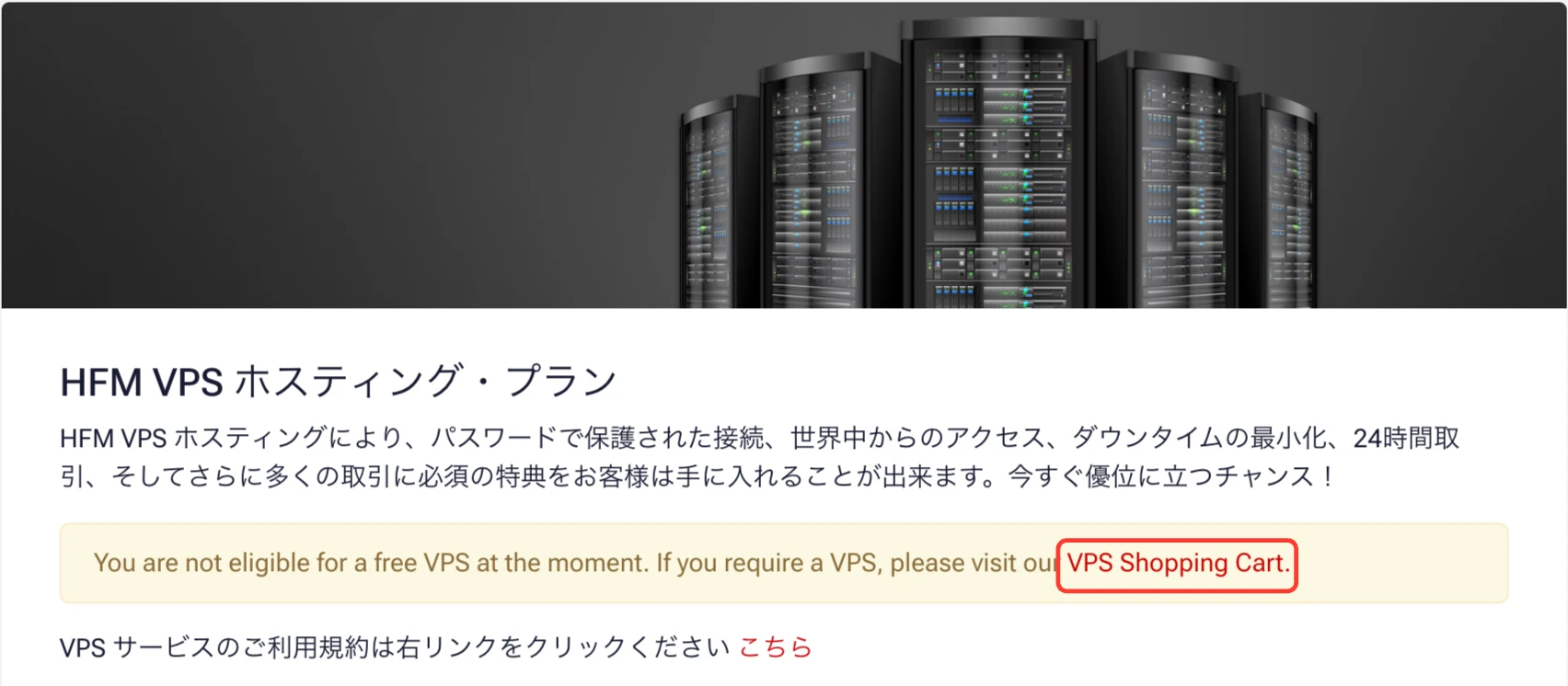
STEP 2: Select your payment currency (USD or EUR) and plan, then click “Order Now.” Choose between monthly or annual billing, and select the VPS display language (Japanese is available).
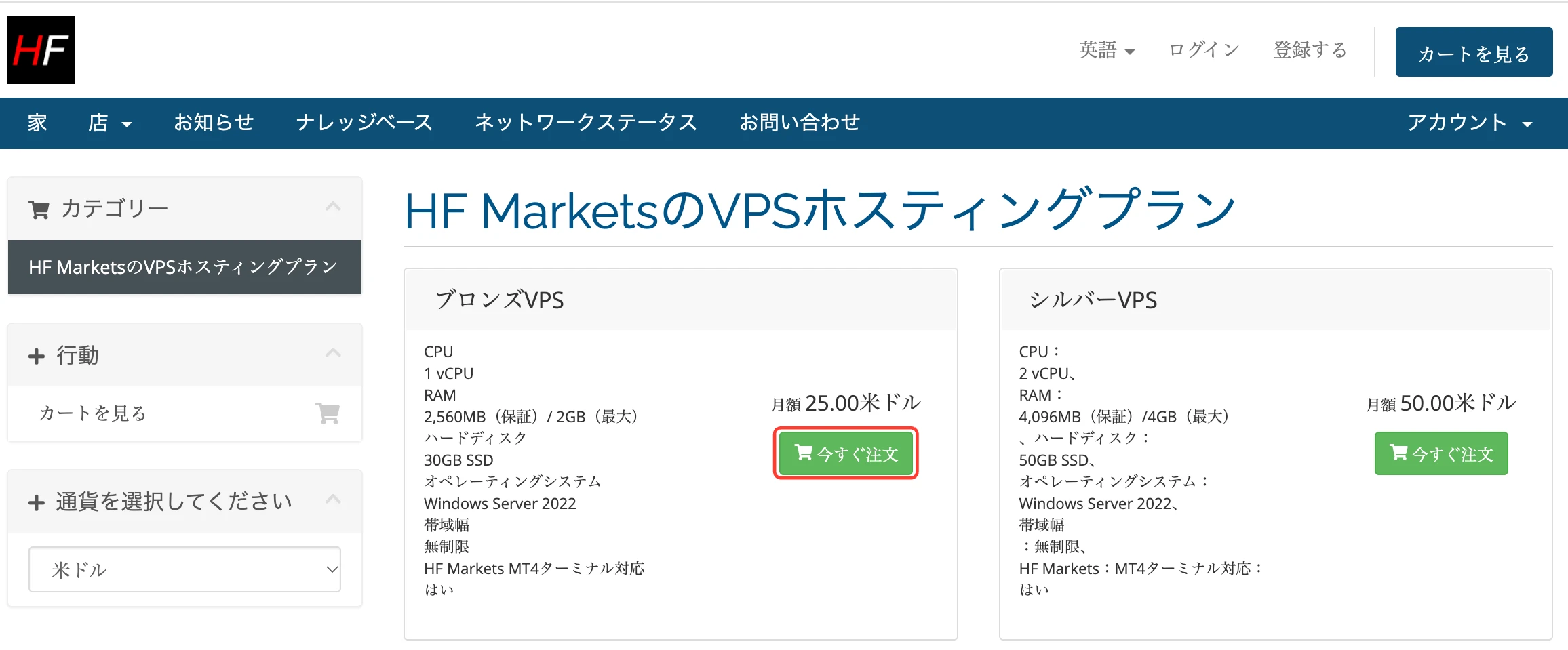
STEP 3: Review the VPS details, complete the payment, and connect using the "Remote Desktop Connection" feature in Windows with the IP address, username, and password you received. Be sure to change the initial password immediately after connecting.
HFM VPS Server Locations
HFM's VPS uses servers provided by Beeks Financial Cloud, which operates data centers in nine locations around the world.
When You Can't Use HFM's MT4, MT5, or App
| Symptoms | Causes and Solutions |
|---|---|
| I can't log in | Incorrect login ID, password, or server name. Please check the account opening email. |
| I can't log in even though I'm using the correct information | I opened an MT4 account on MT5 (or vice versa). I selected the wrong server for the live and demo accounts. |
| Can't connect | Network issues, low smartphone memory, or server maintenance |
| I can't place an order | Insufficient margin, limit order within the spread range, market closed |
| I can't add an indicator | The mobile versions of MT4 and MT5 do not support external indicators (the desktop versions do). |
| Not displayed in Japan Standard Time | The mobile version displays the time based on server time (GMT+2 in winter, GMT+3 in summer), and this cannot be changed. |
Frequently Asked Questions About HFM's MT4 and MT5
Is the HFM MT4 (MT5) download free?
MT4 and MT5 are free to download and use. Trading incurs spreads based on your account type, and Zero accounts also incur trading commissions. The desktop version is available on the HFM website, and the mobile version is available on the App Store and Google Play.
What is HFM's Web Trader?
The trading platform runs directly in your browser, so no download or installation is required. It uses TradingView charts and supports over 100 indicators and more than 110 drawing tools, allowing you to display up to 8 charts simultaneously. It also syncs with the HFM app.
Can I make deposits and withdrawals using the HFM MT5 app?
Go to "Account Management" in the menu → tap the "⋮" in the upper-right corner → tap "Deposit" or "Withdrawal" to open the HFM deposit and withdrawal page in your browser. To request a withdrawal, first transfer funds from your trading account to your wallet.
Can I use one-click trading on the HFM MT4 app?
The MT4 app for iPhone supports one-click trading, while the Android version does not. With the MT5 app, you can place orders with a single tap using the icon in the upper-right corner of the chart.
The HFM MT5 app shows that my phone number is invalid
When creating an account with MetaQuotes, your phone number may be rejected due to an invalid format. Select the country code “+81” and enter your mobile number without the leading 0 (e.g., 090-9999-9999 becomes +81 90-9999-9999). Please note that there is no field for entering a phone number when setting up an HFM account.
Please see HFM's Cashback page for details on the rebate amount and eligibility requirements.