There are two places to log in to XS: the Client Area (my.xs.com) for account management, and MT4/MT5 for trading. You log in to the XS Client Area using your email address and password, and to MT4/MT5 using your account number, password, and server name.
| Login Page | ID | Password | Situations in Which It Is Used |
|---|---|---|---|
| Client Area (Member Page) | Registered email address | The password you set during registration | Deposits, Withdrawals, Fund Transfers, Adding Accounts, Identity Verification |
| MT4/MT5 | Trading Account Number | Trading Account Password | Transactions (You must also select a server name) |
| Web Trader | Trading Account Number | Trading Account Password | Trading via Browser (Open from the Client Area) |
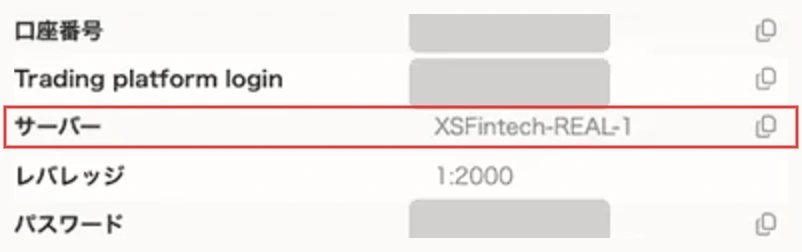
Your MT4/MT5 account number, password, and server name are listed in the email sent to the registered email address when you opened your trading account.
Logging in to the XS Member Page (Client Area)
STEP 1: Open the login page
Open the Client Area login page (my.xs.com/login).

STEP 2: Enter your email address and password
Enter the email address and password you registered with to log in.
STEP 3: Enter the two-factor authentication code
If you have two-factor authentication (2FA) enabled, enter the code displayed in the Google Authenticator app. You can enable two-factor authentication by going to "Profile" → "Two-Factor Authentication" → "Settings" in the client area and scanning the code with Google Authenticator.
Logging into XS on MT4/MT5
Logging into XS's MT4/MT5 from a PC (Windows)
- Launch MT4 or MT5 and open the "File" menu
- Click "Log In to Your Trading Account"
- Enter your account number and password, and select the server listed in the email.
- Click "OK"
Logging into XS's MT4/MT5 on an iPhone (iOS)
- Open the MT4 or MT5 app
- Tap "Settings" → "New Account"
- Type "XS Fintech LTD" into the search bar on the brokerage firm's website and select it
- Enter your account number and password, and verify that the server matches the one in the email.
- Tap "Sign In"
Logging into XS MT4/MT5 on Android
- Open the MT4 or MT5 app
- Select "Manage Accounts" from the menu
- Tap the "+" in the upper-left corner to search for a server name
- Enter your account number and password, verify that you're using the correct server, and tap "Log In."
Select the server name listed in the email.
Download MT4 and MT5 for XS
Download MT5 for XS
From the "Trade" menu on the XS website, select "Platform" → "MT5," then choose the device you want to use and download the app. There are five options available: Desktop (Windows), Web, Mac, iOS, and Android. Follow the on-screen instructions to install the app, then double-click it to launch it.
Download MT4 for XS
For MT4, go to "Platform" → "MT4" and select the version for desktop (Windows), Web, Mac, iOS, or Android to download it.
| Device | MT4 | MT5 |
|---|---|---|
| Windows (Desktop) | ○ | ○ |
| Mac | ○ | ○ |
| iOS | ○ | ○ |
| Android | ○ | ○ |
| Web | ○ | ○ |
MT4 is available for Standard, Pro, and Elite accounts, while MT5 is available for all account types. Information on compatibility by account type is summarized under the XS account type.
XS App (XS Trading App)
The XS app is called “XS – Trade Forex & Stocks.” Search for the app name in the App Store for iPhone and iPad, or on Google Play for Android, and install it. It can also be used on tablets such as the iPad.
| Item | Contents |
|---|---|
| Products Available for Trading | FX, Stocks, Cryptocurrencies, Stock Indices |
| Deposits and Withdrawals | You can make deposits, withdrawals, and fund transfers by clicking "Deposit" at the bottom of the screen. |
| Other Features | Real-time Charts, Alerts, and Watchlists |
| Compatible Devices | iPhone, Android, iPad and other tablets |
The minimum amounts and processing times for each deposit and withdrawal method are summarized in the "XS Deposits and Withdrawals" section.
Logging In to the XS Web Trader
- Log in to the my.xs.com/login
- From the menu on the left, open "Platform" → "Web Trader"
- Enter your account number, password, and server to log in.
Web Trader can be used in any browser.
When You Can't Log In to XS
| Symptoms and Causes | Response |
|---|---|
| I get the message "Username or password is invalid." | The email address or password for the Client Area is incorrect. Please re-enter it or reset your password. |
| Forgot Your Password | On the login page, click "Forgot your password?" and follow the instructions in the email sent to your registered email address to reset your password. |
| I haven't received the verification code email | Check that you've entered your registered email address, check your spam folder, verify that you have enough free space in your inbox, and make sure you haven't blocked the xs.com domain. |
| My registered email address is no longer valid | Contact us via live chat or email (support@xs.com) to begin the recovery process. |
| MT4/MT5 displays "Invalid Account" or "Connection Lost" | Verify your account number, password, and server (copying and pasting helps prevent typing errors). Restart MT4/MT5; if the problem persists, update to the latest version or reinstall the software. |
| The servers are different | Select the server listed in the email you received when you created your account |
| I can't access the demo account | MT4/MT5 demo accounts are archived if there is no trading activity for 90 days and cannot be restored. Open a new demo account. |
If you receive a password reset email that you didn't request, contact support immediately and be sure to enable two-factor authentication.
FAQ
What is my XS.com login ID?
Your login ID for the Client Area is the email address you registered. For MT4/MT5 and WebTrader, your trading account number serves as your ID; you’ll also need to enter your password and server name. Your account number and server name are listed in the email you received when you opened your account.
What should I do if I don't know the server name in MT5 on XS?
The email sent to the email address you registered when you opened your trading account contains your login information and server name. If you cannot find the email, you can find this information by viewing your account details in the Client Area. On the iOS app, search for the brokerage firm “XS Fintech LTD.”
What should I do if I forget my xsfx login password?
Click "Forgot your password?" on the login page and follow the instructions sent to the email address associated with your XS account to reset your password. If you cannot access your registered email address, contact support to go through the recovery process.
Can I make deposits and withdrawals using the XS FX app?
Yes, you can. From the "Deposit" menu at the bottom of the XS Trading app screen, you can choose to make a deposit, withdrawal, or fund transfer. The app is available for iPhone, Android, and tablets such as the iPad.
Can I log in to xscom's MT4 on a Mac?
Yes, you can. XS offers MT4 and MT5 for desktop (Windows), Mac, iOS, Android, and web. Select your device from the "Platforms" section on the XS website and download it.
Can I log in to XS's MT4 with a cent account?
Since the Cent account is exclusively for MT5, you cannot log in to it using MT4. The Standard, Pro, and Elite accounts are compatible with MT4, while the VIP account is also exclusively for MT5.
For details on the rebate amount and eligibility requirements, please see the XS Cashback page.