Exness offers a wide range of trading tools, including MT4, MT5, the Exness Trading App, the Exness Terminal and Web Terminal for use in a browser, and MultiTerminal. EAs (automated trading) are only supported on the desktop versions of MT4 and MT5.
| Platform Name | Supported Devices | Supported Accounts | Using an EA | Installation |
|---|---|---|---|---|
| MT4 | Windows, Mac, Android, iPhone | MT4 Account | PC version only | Required |
| MT5 | Windows, Mac, Android, iPhone | MT5 Account | PC version only | Required |
| exness Trade (App) | Android and iPhone | MT5 Account (MT4 accounts will be moved to the MT4 app) | Not allowed | Required |
| Exness Terminal | Browser (PC/Smartphone) | MT5 Account | Not allowed | Not needed |
| Web Terminal | Browser (PC/Smartphone) | MT4 Accounts and MT5 Accounts | Not allowed | Not needed |
| MultiTerminal | Windows | Multiple MT4 Accounts | Not allowed | Required |
In some regions, MT5 accounts can only be used with MT5 (PC or smartphone) and are not compatible with the Exness Terminal.
The Exness Platform
Exness MT4
Developed by MetaQuotes Software, this trading platform allows you to open an MT4 account with Exness for all account types. You can trade foreign exchange, cryptocurrencies, commodities, indices, and stocks.
exness MT5 (Exness MT5)
MetaTrader 5 is the fifth generation of MetaTrader, offering more features than MT4, and new features continue to be added through updates. MT5 accounts can be used with the PC and mobile versions of MT5, the Web Terminal, the Exness Trading App, and the Exness Terminal.
exness Trade (exness Trade, exness Trader)
This is a mobile trading app developed by Exness that allows you to trade using your MT5 account. You can also manage your MT4 and MT5 accounts (including opening accounts and making deposits and withdrawals) in the app’s Personal Area. If you tap “Trade” on your MT4 account, you’ll be redirected to the MT4 app.
exness Terminal
This browser-based trading tool, which opens from your Personal Area, is available exclusively for Exness accounts. It supports MT5 accounts (live and demo) and requires no installation or updates.
exness MultiTerminal
This version is for Windows and allows you to place orders across multiple MT4 accounts at once. However, it does not include some of the features available in MT4.
Switching Between Exness Trading Terminals
Each trading account is assigned either MT4 or MT5, and this cannot be changed later. You can select which terminal to use by clicking “Trade” in the Personal Area for your account, and you can configure the default settings for your MT4 and MT5 accounts under “Settings” → “Trading Terminal.”
Download MT4 from Exness
Downloading and Installing MT4 (PC)
STEP 1: Check your MT4 account login number and server in your Personal Area
STEP 2: Download MT4 (For Windows, use the Exness installer "exness4setup.exe"; for Mac, use MetaTrader4.pkg.zip)
STEP 3: Open the file and install it, then click “Agree” in the welcome message to close the demo account information window.
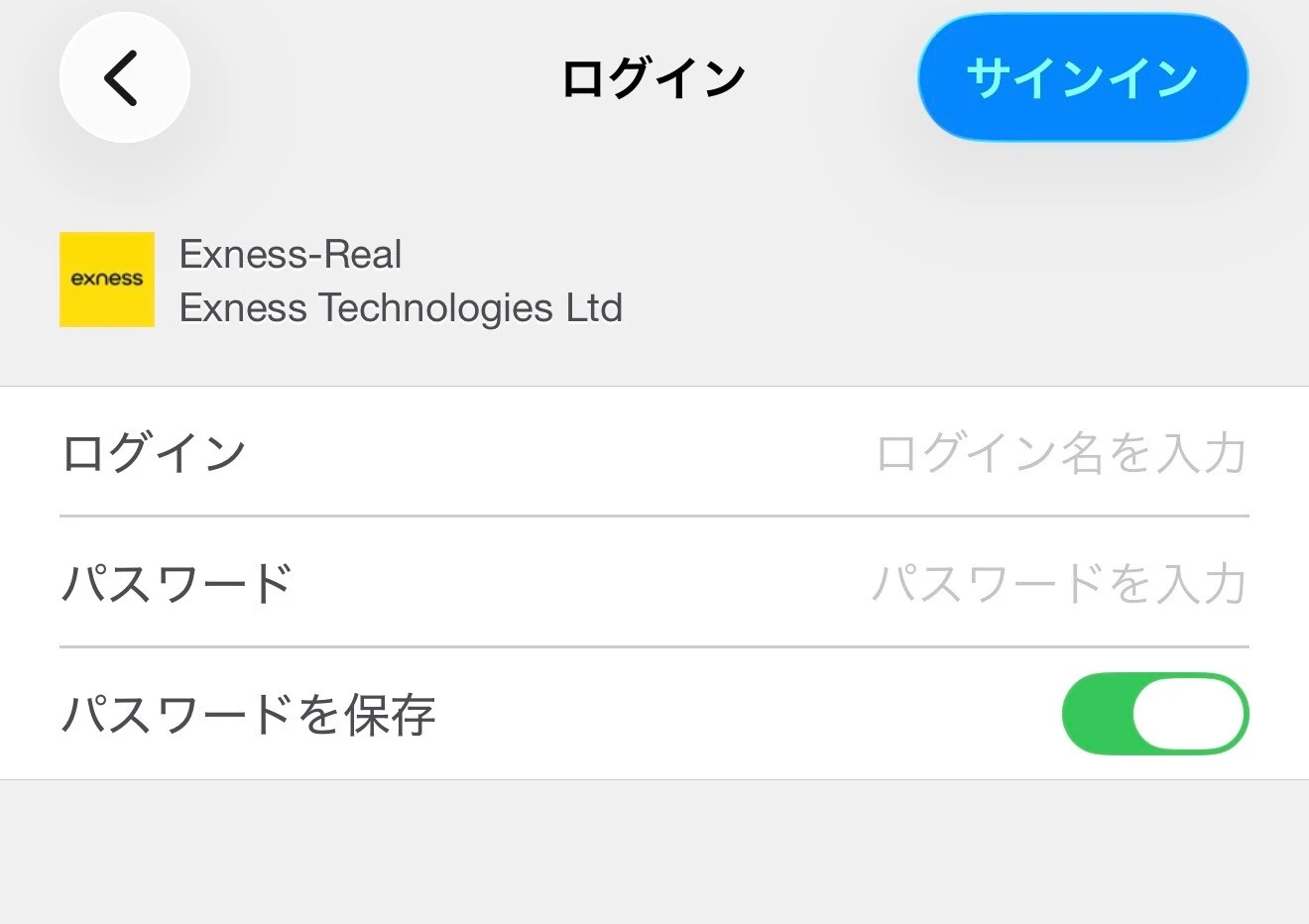
STEP 4: Select a trading server, enter your account number and password, and click “Sign In.”
Download MT4 (Smartphone)
For Android, download the MT4 app from Google Play or as an APK; for iPhone, download it from the App Store. For Huawei devices, you’ll need to follow two steps: first, install DroiTong from the Huawei App Gallery, then download the MT4 APK from the Exness website and install it using DroiTong.
Download MT5 from Exness (MT5 download)
Downloading and Installing MT5 (PC)
STEP 1: Download MT5 (mt5setup.exe for Windows, MetaTrader5.pkg.zip for Mac)
STEP 2: Double-click the installation file and click “Next” to accept the End User License Agreement.
STEP 3: Click "Finish" to open MT5. The first time you do this, click "Cancel" to close the "Open an Account" window.
STEP 4: Go to "File" → "Log In to Trading Account" and enter your login ID, trading password, and server.
Exness MT5 Mobile App
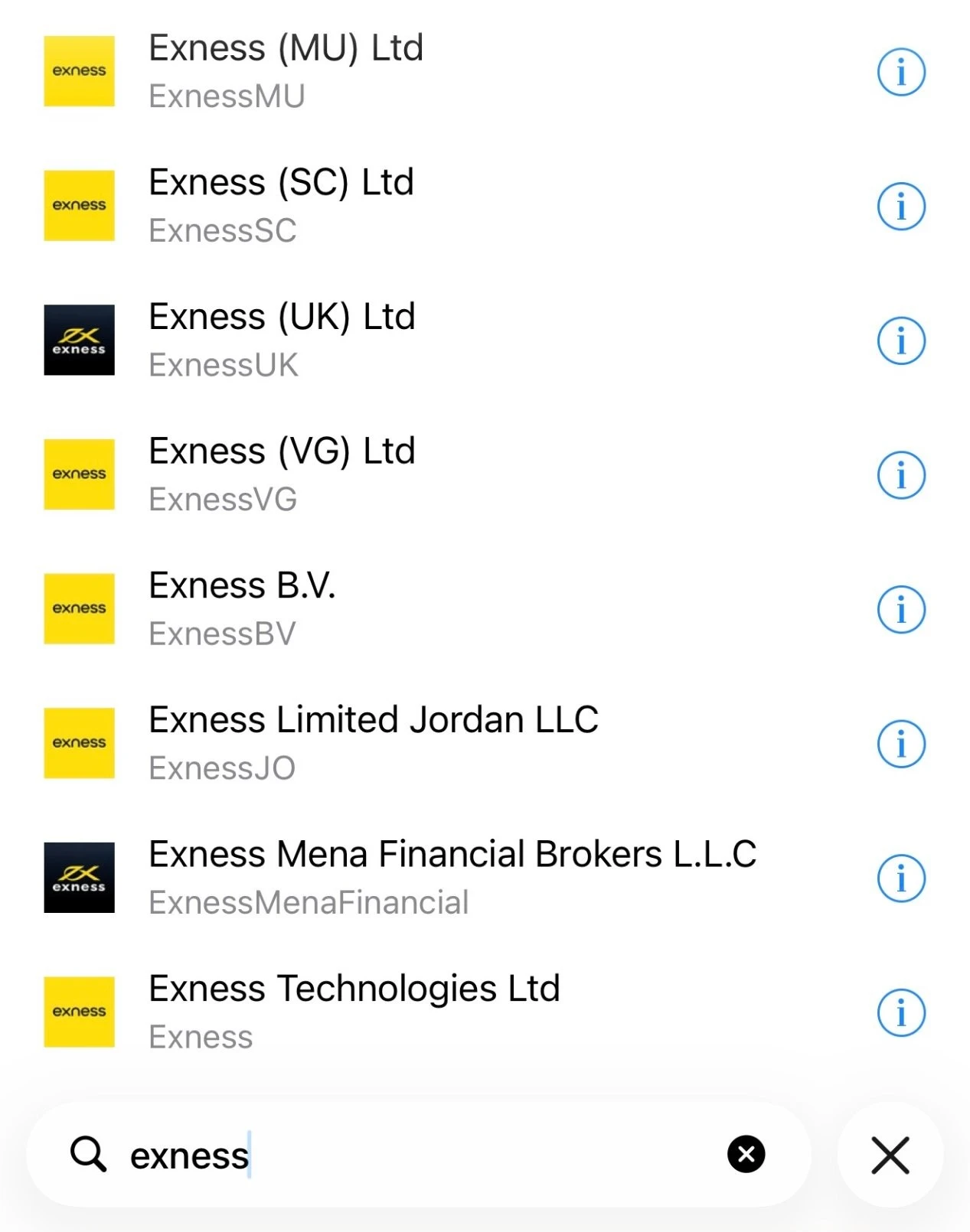
Download the MT5 app from the App Store, Google Play, or the APK version, search for “exness Technologies Ltd” in the list of brokers, select a server, and log in with your account number and trading password. On Huawei devices, install the MT5 APK using DroiTong.
MT4/MT5 Version
MT4 Build 1440 (released February 21, 2025) and MT5 Build 4755 (released December 13, 2024) have been announced, and older versions will no longer be able to connect to Exness servers.
Download the Exness App (App Download, APK, iOS)
exness App (iPhone/iOS app)
You can download the Exness trading app from the App Store. It is compatible with iOS 14.5 or later.
exness App (Android/APK)
You can install Android apps from Google Play. You can also install MT4 and MT5 using the APKs available on the Exness website.
What You Can Do with the Exness Trading App
- Account registration, opening, and management; deposits and withdrawals; 24-hour live chat within the app
- Charts with over 100 indicators and 50 drawing tools, push notifications for price alerts, and one-click trading
- Trading Central analysis, economic calendar, and FXStreet news
- You can choose your trading platform from "exness," "TradingView," "built-in MetaTrader 5," or the "MetaTrader 5 app" (MT5 accounts only)
Japanese Language Display in the Exness App (Available in Japan)
You can change the display language to Japanese by going to "Profile" → "Settings" → "Language" in the app. The Exness trading app is available in most countries where registration is accepted. If you cannot find the app in the app store, it means it is not available in that country, so please trade using the MT4 or MT5 app instead.
exness Web Terminal (WebTrader)
This browser-based trading tool, developed by MetaQuotes Software, can be used with both MT4 and MT5 accounts. No installation is required, and you can access it directly from your smartphone's browser.
| Features | Web Terminal | MT4/MT5 for PC |
|---|---|---|
| Installation | Not needed | Required |
| EA and Scripts | Not allowed | Yes |
| Indicator | Yes | Yes |
| Trailing Stop | Not allowed | Yes |
| Signal | Not allowed | Yes |
exness Web Trading
There are two ways to trade using a browser: the Web Terminal (for MT4/MT5 accounts) and the Exness Terminal (for MT5 accounts). To open the Exness Terminal, go to “Trading” → “Exness Terminal” for your MT5 account in the Personal Area. There, you can use one-click trading, the risk calculator, price alerts, and the economic calendar. Chart layouts saved in the Web Terminal can also be opened in the Exness Trading App. The login procedure is covered in the Exness Login section.
exness's TradingView
TradingView charts are integrated into the Exness Terminal and the Exness Trading App. Only the charting features are available; you cannot log in to your Exness account directly from TradingView. In the Exness Trading App, if you set the trading terminal to “TradingView,” you can use TradingView charts within the app.
Exness EAs and VPS
Exness EAs (Automated Trading)
EAs only work on the PC versions of MT4 and MT5; they do not work on the mobile or web versions. EAs designed for MT4 cannot be used on MT5, and vice versa. In MT4, go to “Tools” → “Options” → “Expert Advisors” and check “Allow automated trading”; in MT5, check “Allow algorithmic trading.”
exness VPS (exness VPS)
Exness VPS is a virtual server that allows you to keep your EAs running continuously without relying on your own computer or internet connection. You can apply for it free of charge once you meet the requirements for your total account balance and trading volume. You can check these requirements in the Personal Area under “Exness Benefits” → “Virtual Private Server.” If you fail to meet the required trading volume for a certain period, you will lose access to the VPS, and the data stored on it will be deleted.
Exness Server Locations
VPS servers are located near Exness's trading servers in Amsterdam, Dubai, Seoul, Singapore, Miami, and Johannesburg. You can choose the server location when you apply for a VPS.
When You Can't Use or Download the Exness App
| Situation | Causes and Solutions |
|---|---|
| exness Trade is not available on the App Store or Google Play | It is not available in the app store in that country. Trade using the MT4 or MT5 app. If you already have it installed, do not uninstall it. |
| The app won't work on my iPhone | Update to iOS 14.5 or later and update your apps to the latest versions |
| I can't log in to the app | Log in using your registered email address and Personal Area password, not your trading account information. |
| There is no "Trade" icon in my account | The trading terminal is set to Exness. Place orders from the "Trading" tab. |
| Stock names are not displayed | Your connection is unstable. Please log in again using a stable connection, such as Wi-Fi. |
| I can't trade on my MT4 account | Trading within the app is available only for MT5 accounts. Install the MT4 app. |
| Charts are slow or won't load | For the browser version, clear your cache and cookies. If the issue persists, create a ticket in the Support Hub under the "Exness Platform" category. |
FAQ
Can I use an Exness demo account with MT4?
Yes, you can. Go to “Open an Account” in your Personal Area to create an MT4 demo account, then enter the demo account’s login ID, password, and server into MT4 to log in. There is no demo account available for the Standard Cent account. Instructions on how to create a demo account are provided in the Exness account opening guide.
Can I use my MT4 account on the Exness app (iPhone)?
Trading on the Exness Trading App is available only for MT5 accounts. If you tap “Trade” on an MT4 account, you’ll be redirected to the MT4 app, so please download the MT4 app from the App Store. You can manage your accounts and make deposits and withdrawals using the Exness Trading App.
Can I use the Exness trading platform in Japanese?
Yes, you can. You can change the language to Japanese in the Exness trading app by going to "Settings" → "Language"; in the Exness Terminal, click the globe icon in the Personal Area; and in MT4/MT5, go to "View" → "Language."
What are the differences between Exness's MT4 and MT5?
MT5 accounts can be used for trading via the Exness trading app and the Exness Terminal, while MT4 accounts can be used with MT4, the Web Terminal, and MultiTerminal. Each trading account is assigned to one of these platforms, and this cannot be changed later, so you should open an account based on the tools you plan to use.
For details on the rebate amount and eligibility requirements, please see the Exness Cashback page.