Opening an account with Exness is easy: simply register with an email address and password, then submit your identification and proof-of-address documents to complete the process. Once registration is complete, a Standard MT5 live trading account will be automatically created within your account.
| STEP | Things to Do | What You'll Need |
|---|---|---|
| STEP 1 | Sign up for Exness (enter your partner code) | Email Address and Password |
| STEP 2 | Verify Your Email Address and Phone Number | Confirmation codes sent via email, SMS, etc. |
| STEP 3 | Enter your personal information | Name, Date of Birth, Address, Country of Residence |
| STEP 4 | Submit Proof of Identity (POI) | Passports, My Number Cards, driver's licenses, etc. |
| STEP 5 | Submit Proof of Address (POA) | Utility bills, bank statements, and other documents issued within the past 6 months |
| STEP 6 | Select a trading account and make a deposit | A payment method in your name for making deposits |
Documents Required to Open an Exness Account
There are two types of documents: proof of identity (POI) and proof of address (POA). You can submit both the POI and POA at the same time. You can also submit the POA at a later date.
| Documents | Example | Conditions |
|---|---|---|
| Proof of Identity (POI) | Passport, My Number Card, Driver's License | A document issued by a government agency that includes your name, age, and a photograph. It must be valid for at least three months from the date of submission. |
| Proof of Address (POA) | Utility bills (electricity, water, gas, internet, phone), recent bank statements, local tax bills, and a letter of inquiry from a financial institution in your country of residence | It must include your name and address and have been issued within the past six months. Even if an identity verification document includes your address, it does not serve as a Power of Attorney (POA). |
- Accepted file formats: Photos, scans, and copies (all four corners must be visible)
- File types: .jpg, .bmp, .png, .pdf (50 MB or less)
- Medical bills, purchase receipts, and insurance statements are not accepted as a Power of Attorney (POA).
How to Open an Exness Account (Steps for New Registration)
STEP 1: Sign Up for Exness (Exness Registration)
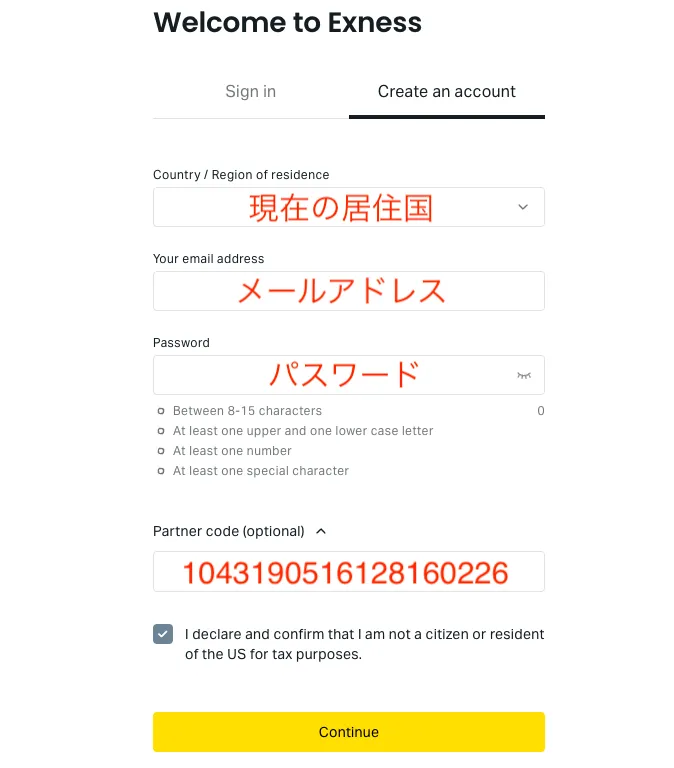
Open the Exness registration page, enter your email address, and create a password that meets the displayed requirements. Enter 1043190516128160226 in the "Partner Code" field. Check the box confirming that you are not a U.S. citizen or resident, then select “Continue” to complete registration. The Exness Terminal will then open. In some regions, you can also register using a Google account.
STEP 2: Verify Your Email Address and Phone Number
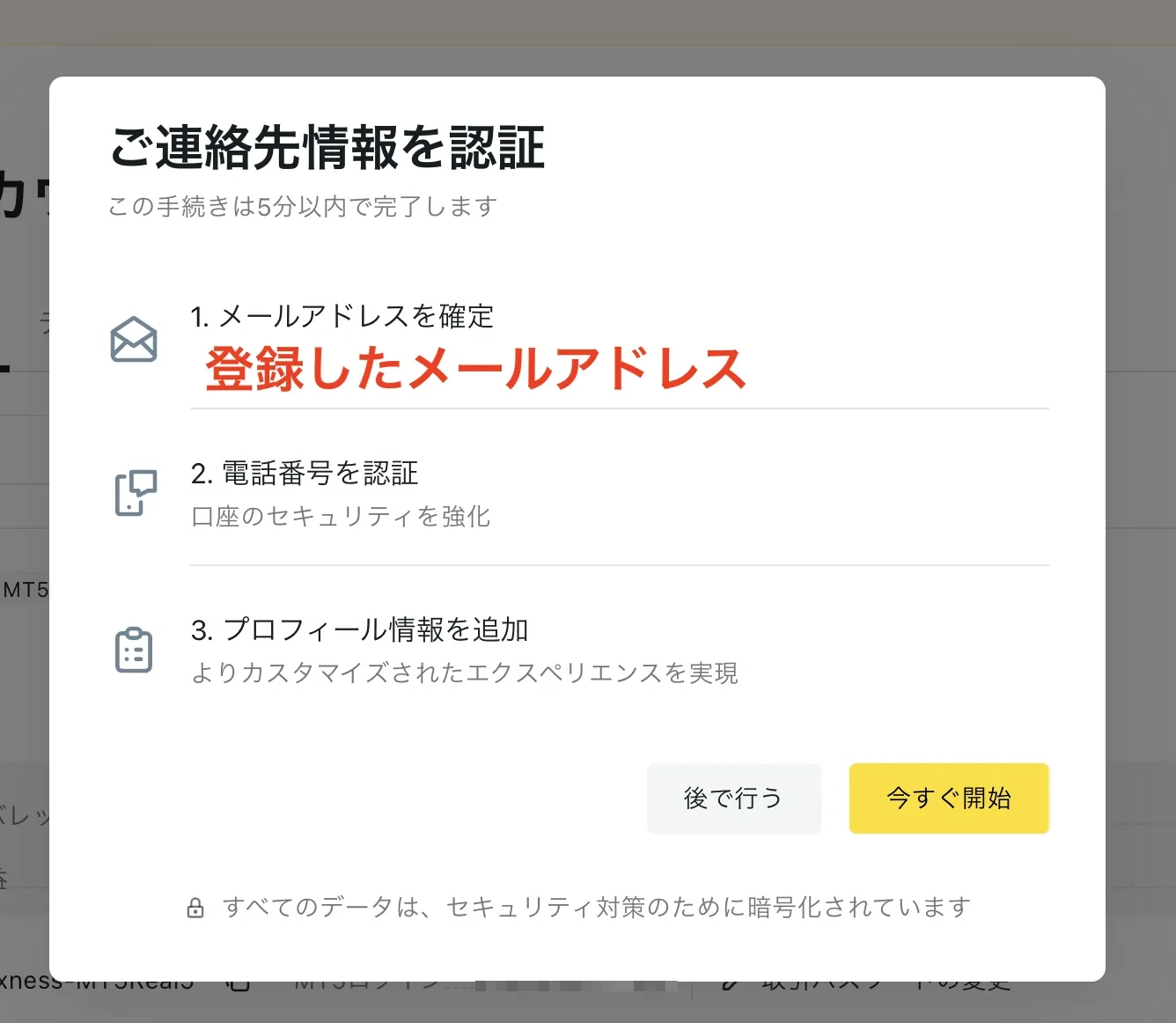
A one-time code will be sent to your email address. A verification code will be sent to your phone number via text message or phone call.
STEP 3: Enter Your Personal Information
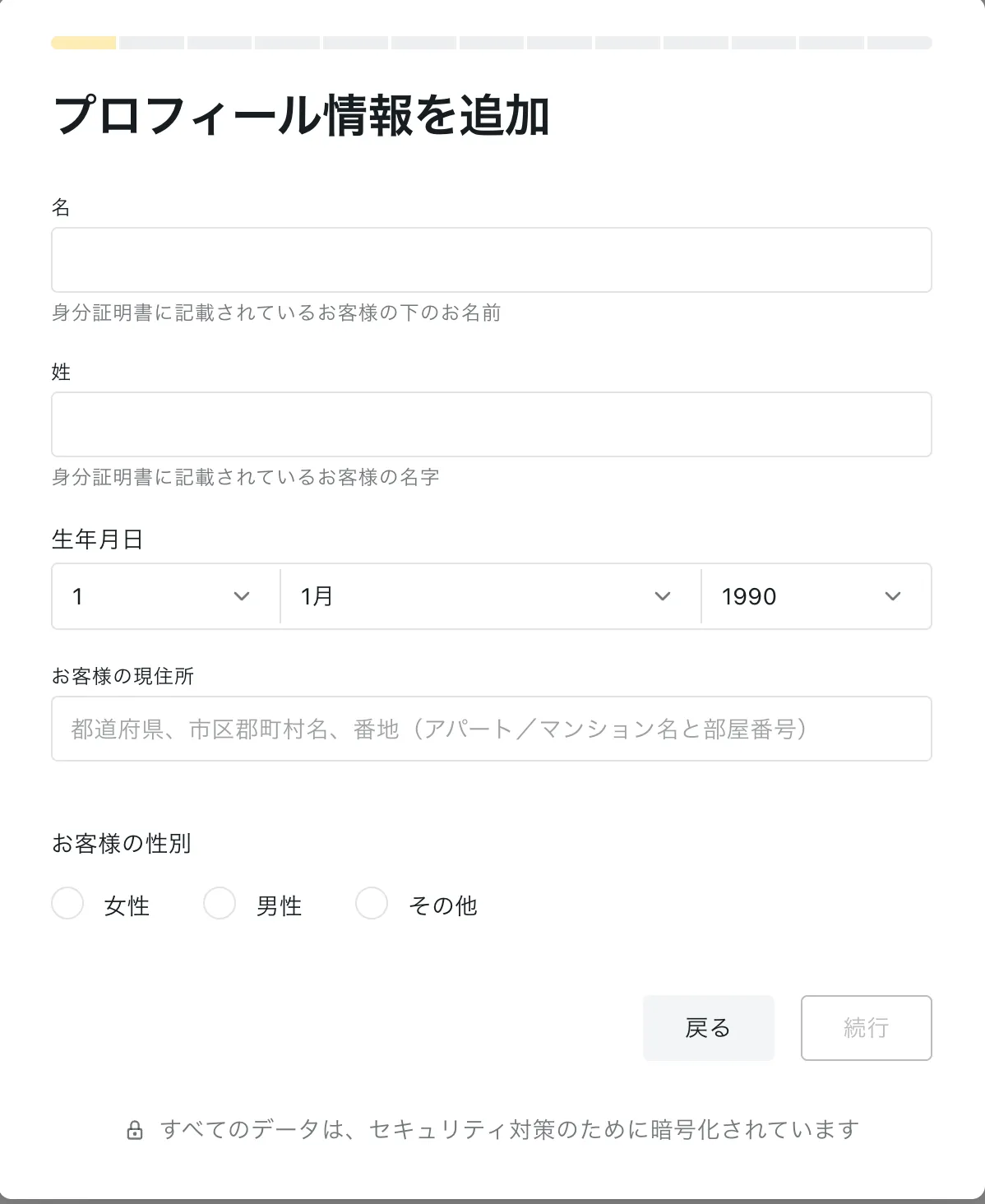
Enter your name, date of birth, address, and country of residence. Ensure that this information matches the details on the documents you are submitting exactly.
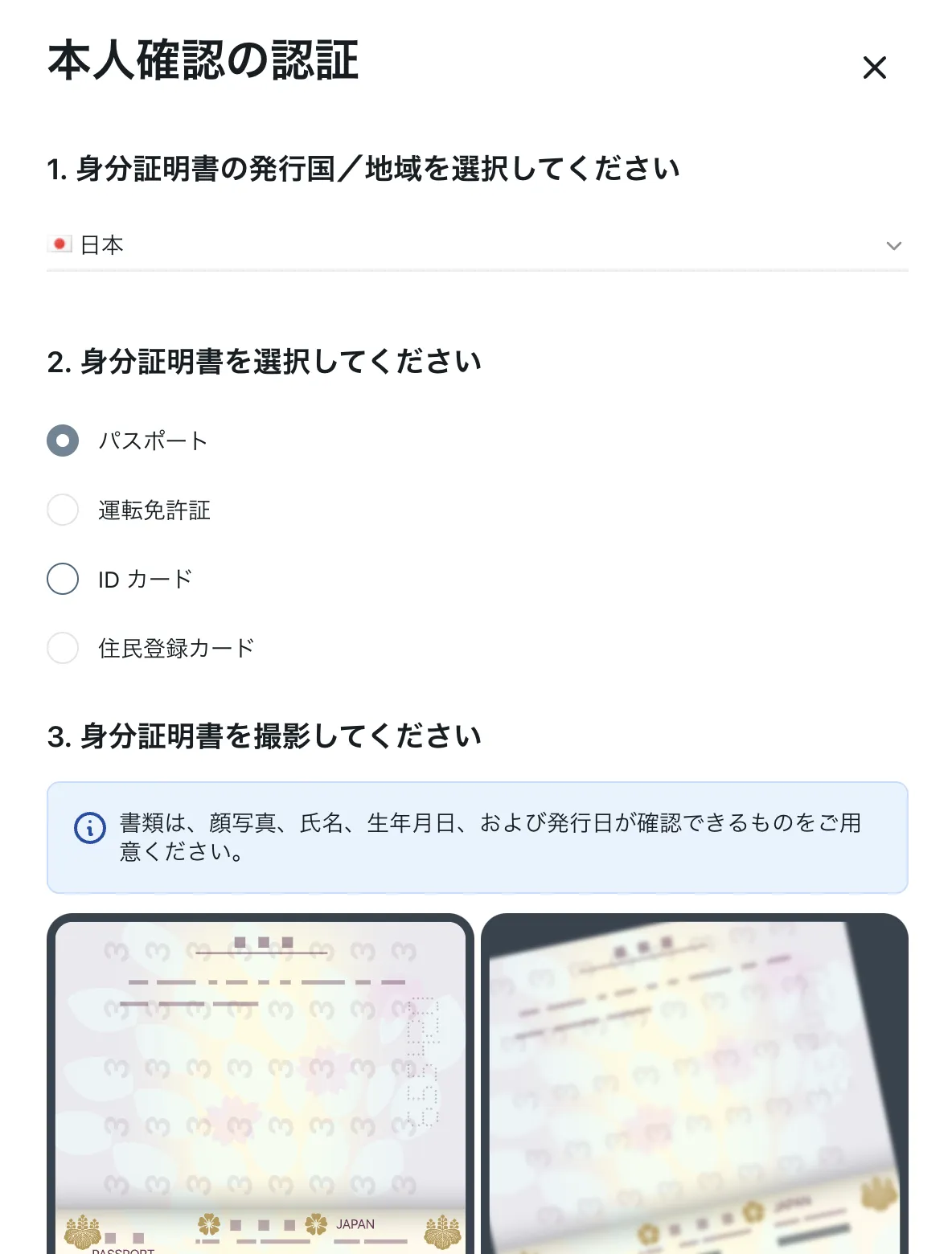
STEP 4: Submit Proof of Identity (POI)
Select your country and the type of document, then upload an image of your identification document. Images that are blurry or have parts cut off may be rejected.
STEP 5: Submit Proof of Address (POA)
Upload a document issued within the last six months that includes your name and address. If your document is rejected, you will receive an email notification. Check the verification status at the top of your Personal Area to see the reason, make the necessary corrections, and resubmit it.
STEP 6: Open a Trading Account and Deposit Funds
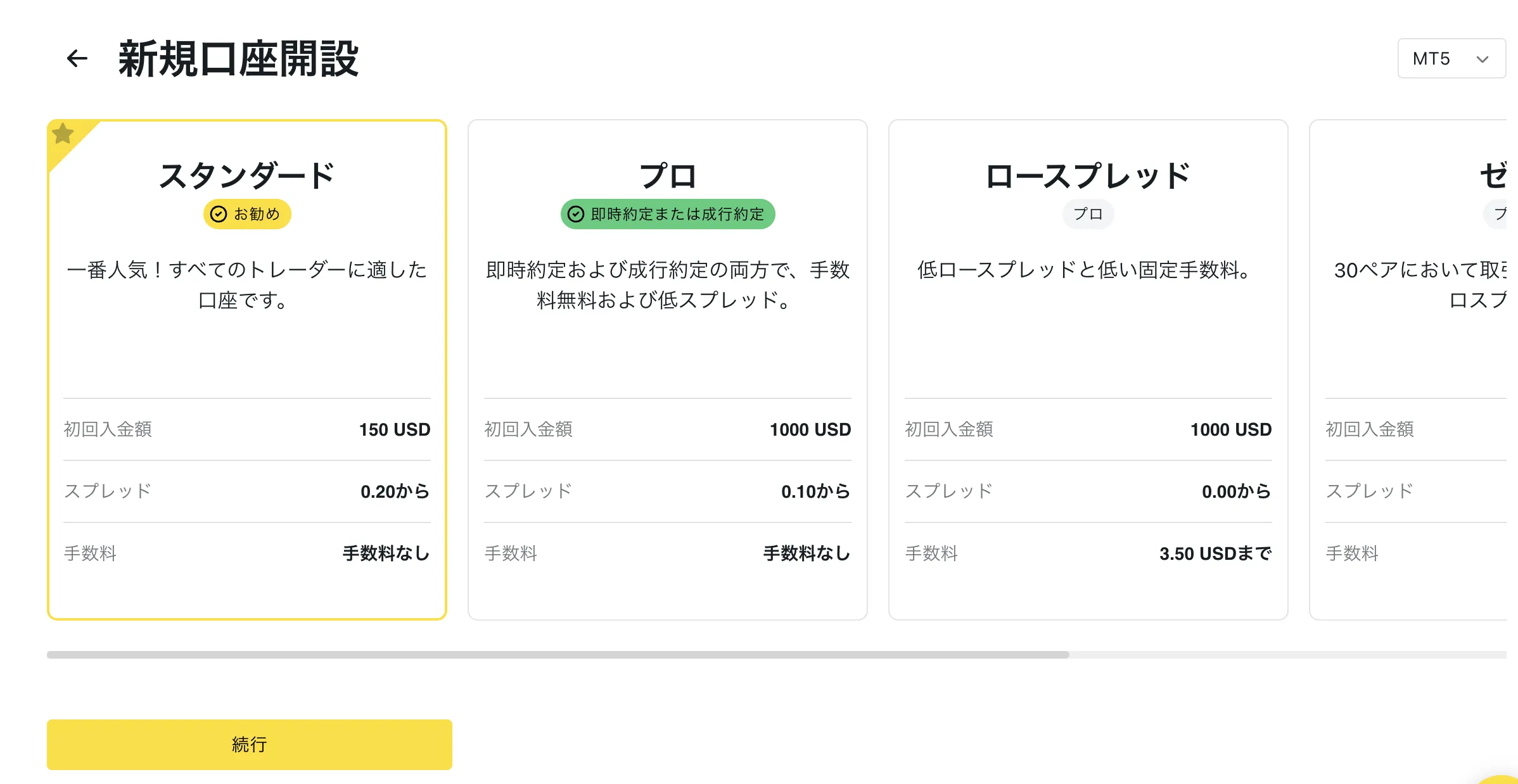
From the "My Account" section of your personal area, select "Open an Account," then choose an account type to open your account. There are five account types to choose from: Standard, Standard Cent, Pro, Zero, and Low Spread. The differences between them are summarized in the Exness account types section.
How Long Does It Take to Open an Account with Exness?
It may take up to 24 hours to verify your documents. If you haven't received a response after 24 hours, please check the status through the Support section in your Personal Area.
What You Can and Cannot Do Before Identity Verification
| Authentication Steps | Deposit Limit |
|---|---|
| Only email addresses, phone numbers, and personal information | Deposit limits are set low for all trading accounts |
| In addition to the above, you must complete your financial profile—which involves answering questions about your occupation, income, and other details in the Personal Area—and submit proof of identity (POI). | The deposit limit will be raised |
| The above + proof of address (POA) has been accepted | Full verification is complete, and there are no deposit limits (though limits per payment method still apply). |
Depending on your registered region, you may not be able to trade until you have completed full verification. Current restrictions are displayed in the Personal Area. The deposit procedure is covered in the Exness Deposit Methods section.
exness Partner Code (Partner/IB)
Enter the partner code when registering
If you enter a code in the "Partner Code" field on the registration screen, you will be registered under that partner. If you enter an invalid code, the field will be cleared, and you can re-enter it. The REBATE ONE partner code is 1043190516128160226.
Apply for an account number with REBATE ONE
Once you've opened an account, submit your trading account number through the REBATE ONE My Page.
Existing Account Holders: Adding an Exness Account and Changing Partners
How to Create an Additional Account with Exness
If you're already registered with Exness, you can open an additional account from the same Personal Area.
STEP 1: Log in to your personal account, open "My Account," and select "Open an Account."
STEP 2: Select an account type and click "Continue"
STEP 3: Review your settings and click "Open Account"
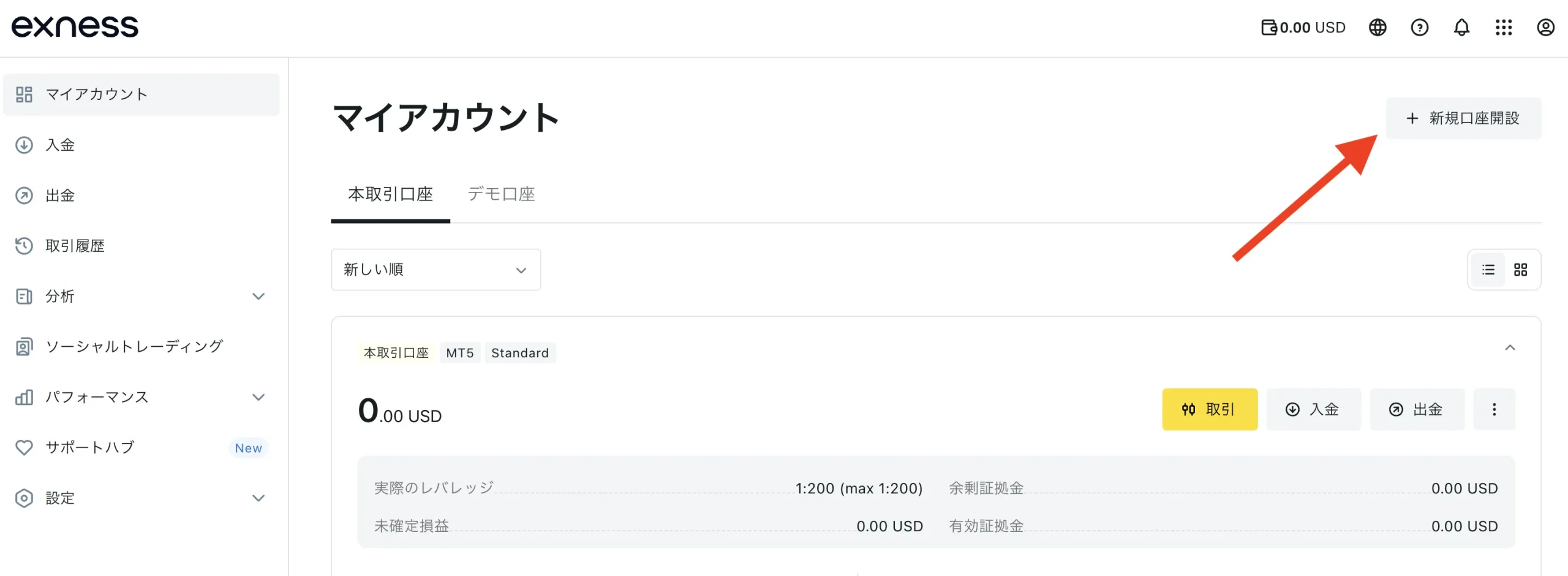
The account you create will appear in the "Live Trading" or "Demo" tab under "My Account." Since the account type, trading server, account currency, and MT4/MT5 cannot be changed later, you'll need to create a new trading account if you want to make any changes.
| Account Type | Number of items that can be created in a single personal area |
|---|---|
| Standard, Pro, Low Spread, Zero | For each account type: 100 live trades on MT4, 100 demo trades on MT4, 100 live trades on MT5, and 100 demo trades on MT5 |
| Standard Cent | 10 live trades on MT4, 20 live trades on MT5 (no demo) |
| Total | Up to 1,630 active trading accounts |
Changing Your Exness Partner
If you registered without entering a partner code, or if you are currently affiliated with a different partner, please submit a request to change your partner to Exness Support. Fill out the request form as follows:
| Item | Information to Enter |
|---|---|
| Reason for the Change | Rebate |
| Partner's Wallet Number | 1043190516128160226 |
Once you complete the request via chat, your partner change will be approved within 72 hours.
Exness Demo Account (Exness Demo)
Open an Exness demo account
When you register, one Standard MT5 demo account will be automatically created for you. To open additional demo accounts, select "Open an Account" in the Personal Area and choose "Demo," or open one through the Exness trading app. Demo accounts can be opened for all account types except the Standard Cent account.
Deposit funds into an Exness demo account
STEP 1: In the "My Account" section of your Personal Area, select the "Demo Account" tab
STEP 2: Tap "Set Balance" in your account (on the screen, tap "︙" to proceed)
STEP 3: Enter your desired balance and confirm by clicking "Set Balance"
The balance can only be set in the currency of the demo account.
Important Points to Note About Exness Demo Accounts
- Since demo accounts use virtual funds, you cannot make withdrawals.
- Unused demo accounts will be deleted and cannot be restored (live trading accounts are archived and can be reactivated).
- The market trading conditions are virtually the same as those for this trading account.
Instructions on how to log in to an MT4 demo account and how to install the app are available on the Exness MT4, MT5, and Apps page.
FAQ
Can I use a Google account to open an account with Exness?
In some regions, you can sign up by selecting "Sign in with Google" on the sign-up screen. In regions where this option isn't available, sign up using your email address and password. In either case, you can enter the partner code in the designated field during registration.
Can I create multiple personal accounts with a single email address?
You cannot do that. While you can register a new Personal Area using a different email address, the password and personal identification number will be set separately, and the two Personal Areas will be treated as distinct accounts. When adding an account, create the additional account within the same Personal Area.
What should I do if I see a message saying my email address is already in use when registering with Exness?
That email address is already linked to your Exness account. Reset your password using the "Reset Personal Area Password" option, then log in to your existing Personal Area.
What happens if I forget to enter my Exness partner code?
You will be registered without being assigned to a partner. To assign a partner later, submit a request to support to change your partner, enter “Rebate” as the reason, and enter 1043190516128160226 as the partner’s wallet number. If you submit the request via chat, the partner change will be approved within 72 hours.
Can I change the account currency or account type on an additional Exness account?
You cannot change the account type, trading server, or account currency of an existing trading account. If you wish to trade under different conditions, create a new trading account in the Personal Area and select your preferred account type and currency.
Can I open an Exness demo account on MT4?
Yes, you can. You can open a demo account on either MT4 or MT5. You can open up to 100 MT4 demo accounts and 100 MT5 demo accounts per account type. There are no demo accounts available for the Standard Cent account.
For details on the rebate amount and eligibility requirements, please see the Exness Cashback page.